Purchase Orders
Create and manage purchase orders with multiple items, quantities, and pricing.
3-Day Free Trial · 45 Seconds Setup · No Credit Card
What Purchase Orders does
Create a purchase order with multiple items, quantities, supplier prices and expected delivery, then send it as a PDF. Receive against the order when stock arrives.
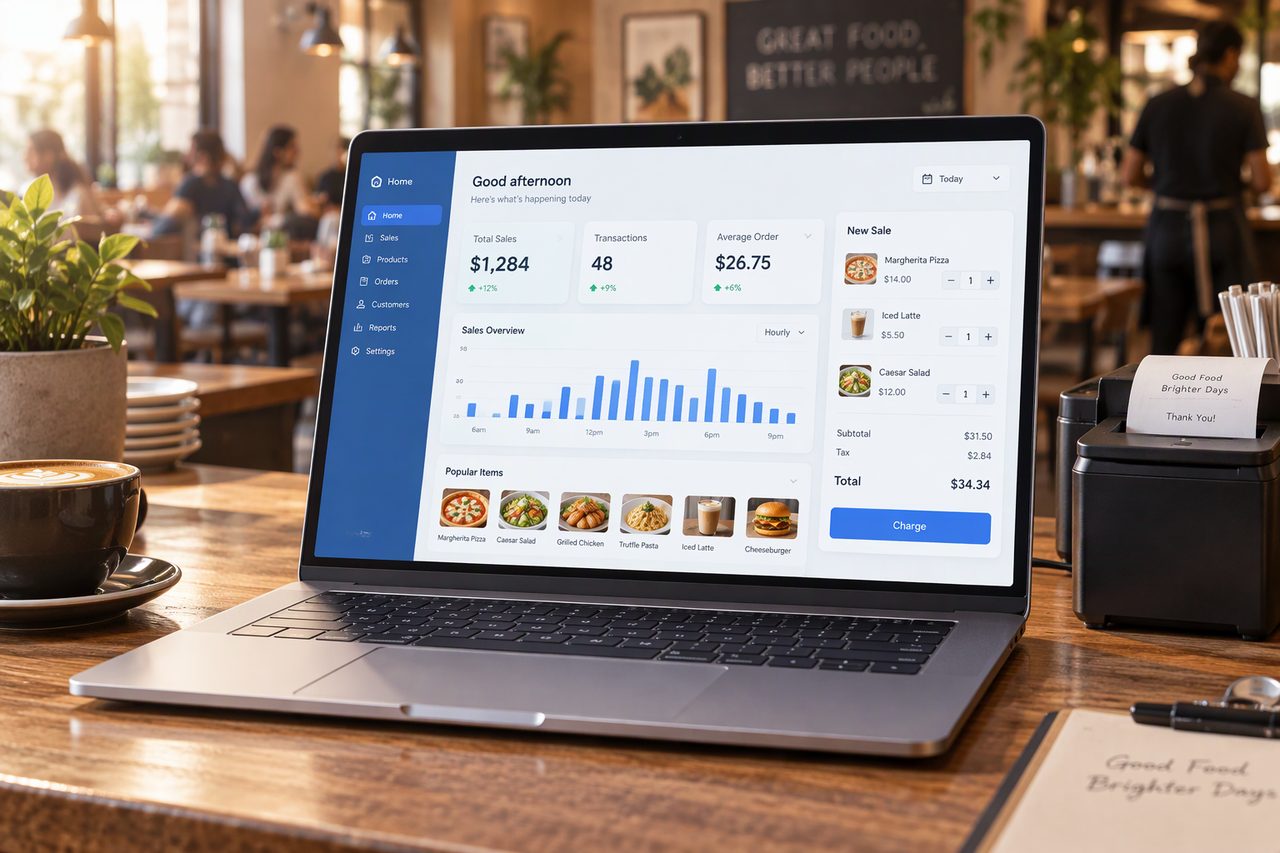
Purchase Management in Sum Cloud POS connects purchase orders with billing, inventory, customers and reports. A change made here is reflected everywhere, so there is no duplicate entry and no end-of-day reconciliation.
Key capabilities
- Multi-item purchase orders
- Supplier price and tax per line
- Approval before sending
- PDF, print or WhatsApp to the supplier
Sum Cloud POS runs in the browser on Windows, Android and iPad, keeps working offline, and syncs every terminal in your account. Role-based permissions control who can view or change purchase orders.
At a glance
- Cloud-based, no server to maintain
- Works offline and syncs automatically
- Desktop, tablet and mobile browser
- Role-based access and audit trail
How Purchase Orders works
Three steps from opening the module to a synced record.
Open Purchase Management and choose Purchase Orders.
Supplier price and tax per line
Confirm the action. The change flows to billing, stock and reports in real time.
Why teams use Purchase Orders
Built for shops, restaurants and multi-branch businesses in Pakistan and beyond.
Approval before sending
PDF, print or WhatsApp to the supplier
Runs offline and syncs automatically when the connection returns
Purchase Orders FAQ
Short answers to the questions teams ask before switching on purchase orders.
Browse all featuresRelated Purchase Management features
Keep exploring the tools that work with purchase orders.
Try Purchase Orders in Sum Cloud POS
Start a free trial, bring your products and see the difference in your first checkout.