Quick Checkout
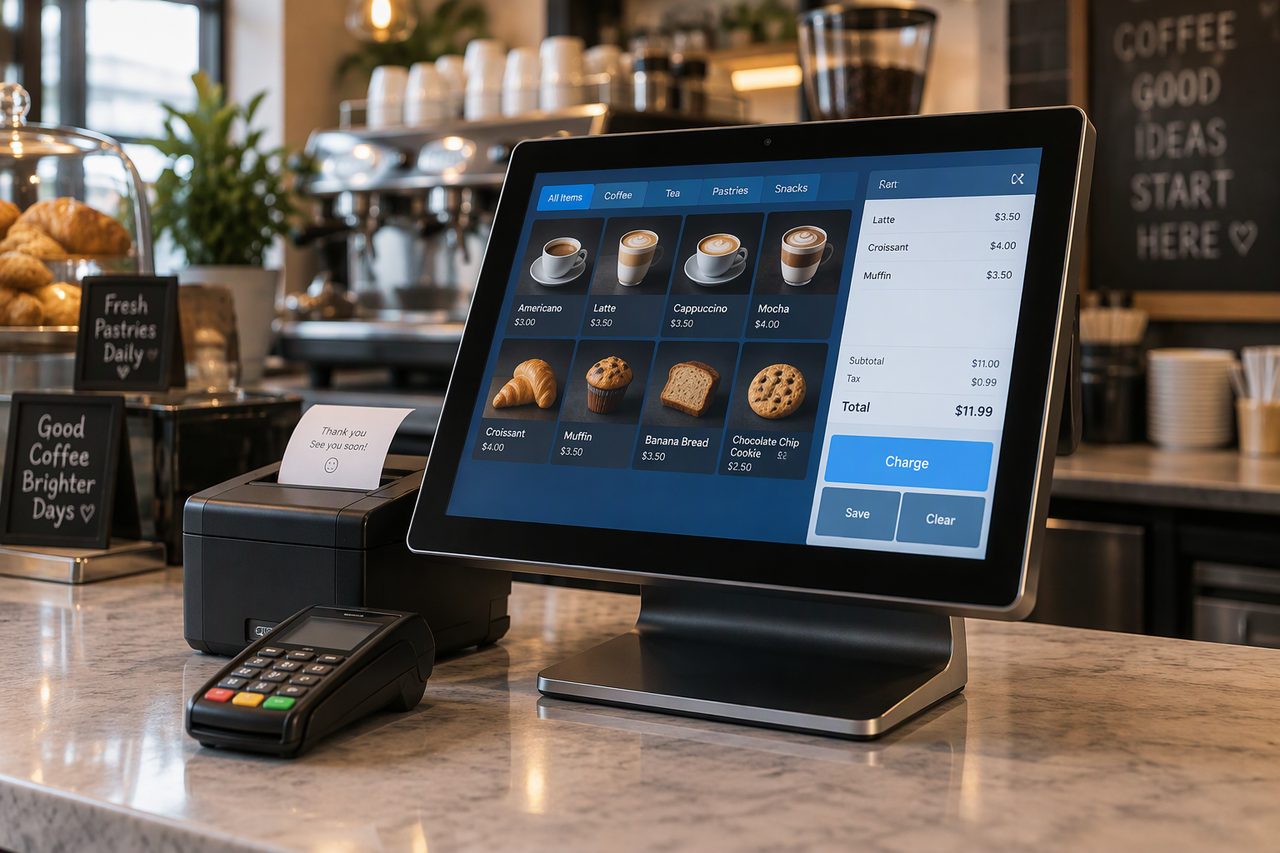
Streamlined checkout process with one-tap payment options and receipt printing.
3-Day Free Trial · 45 Seconds Setup · No Credit Card
What Quick Checkout does
Scan, tap payment and print in one flow, with the most-used actions always one tap away. The checkout screen is designed to remove steps, not add them.
Touch POS in Sum Cloud POS connects quick checkout with billing, inventory, customers and reports. A change made here is reflected everywhere, so there is no duplicate entry and no end-of-day reconciliation.
Key capabilities
- Single-screen scan, pay and print flow
- Express payment buttons for common tenders
- Automatic receipt print after payment
- Keyboard shortcuts for high-volume counters
Sum Cloud POS runs in the browser on Windows, Android and iPad, keeps working offline, and syncs every terminal in your account. Role-based permissions control who can view or change quick checkout.
At a glance
- Cloud-based, no server to maintain
- Works offline and syncs automatically
- Desktop, tablet and mobile browser
- Role-based access and audit trail
How Quick Checkout works
Three steps from opening the module to a synced record.
Open Touch POS and choose Quick Checkout.
Express payment buttons for common tenders
Confirm the action. The change flows to billing, stock and reports in real time.
Why teams use Quick Checkout
Built for shops, restaurants and multi-branch businesses in Pakistan and beyond.
Automatic receipt print after payment
Keyboard shortcuts for high-volume counters
Runs offline and syncs automatically when the connection returns
Quick Checkout FAQ
Short answers to the questions teams ask before switching on quick checkout.
Browse all featuresRelated Touch POS features
Keep exploring the tools that work with quick checkout.
Try Quick Checkout in Sum Cloud POS
Start a free trial, bring your products and see the difference in your first checkout.