Desktop KDS · Windows
Desktop Kitchen Display System — Live KOT Tickets, Custom Templates, Running Order Alerts
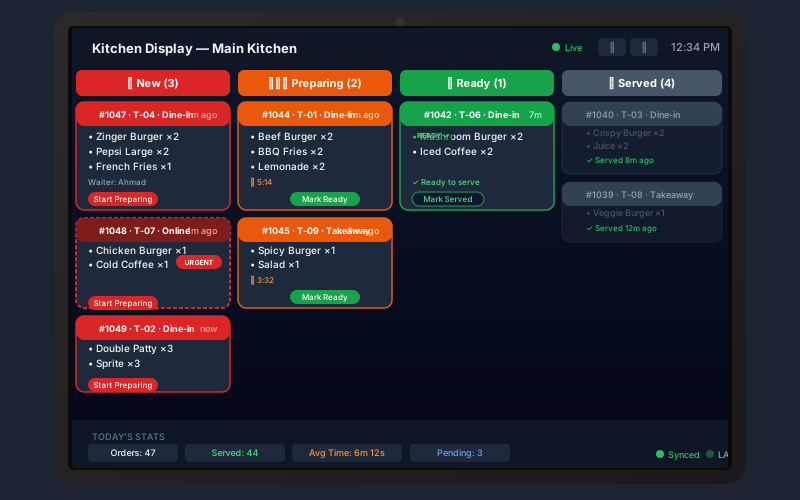
The Sum Cloud POS Desktop KDS runs on any Windows PC in your kitchen. Orders arrive via SignalR in under one second, a drag-and-drop KOT template builder designs your print layout, and running orders are flagged loudly so nothing gets missed during a busy service.
Features
Complete desktop KDS feature set
SignalR Real-Time Orders
Orders pushed from the POS via SignalR WebSocket appear on the kitchen display in under one second — no page refresh, no polling. The kitchen always sees the current queue instantly.
KOT Template Builder
A drag-and-drop interface lets you place, remove, and reorder blocks on the KOT ticket — company name, branch, items, table, waiter, notes, and custom separators. Live preview updates as you design.
Running Order Detection
When a table already has guests eating and a new KOT arrives, it is automatically classified as a Running Order — displayed with a pulsing red badge, a distinct sound, and sorted to the top of the queue.
Automatic KOT Printing
Connect USB or network thermal printers (58mm or 80mm) and enable auto-print. Every incoming ticket prints automatically — no kitchen staff action required. Fonts, size, and paper width are all configurable.
LAN Bridge WiFi Service
A built-in TCP/UDP server broadcasts orders over your local network. The mobile KDS and TableTime waiter app connect to it directly — so the kitchen still works during internet outages.
6-Tab Settings Panel
Settings organized into Printer, Display, Sound, Network, System, and Danger tabs — so every aspect of the KDS behavior is tunable without touching config files or code.
Configurable Sound Alerts
Different sounds for new orders vs. running orders. Volume and sound selection configurable from the Sound tab. Keeps kitchen staff alert without constant screen watching.
Offline Queue with Sync Indicator
A cloud-off badge in the header shows the count of pending tickets when the connection drops. Tickets are queued and automatically pushed to the display when connectivity resumes.
Local SQLite Storage
Order history, settings, and KOT templates are all stored locally in SQLite. No cloud dependency for kitchen operations — data is available even without a server connection.
KOT Template Builder
Design your KOT exactly how your kitchen needs it
Different kitchens need different KOT formats. A busy grill station needs minimal info. A fine-dining kitchen needs full detail. The KOT Template Builder gives you full control without any technical knowledge.
- 16 block types: company name, branch, KOT number, items, notes, table info, waiter, date/time, separators, custom text, and more
- Drag to reorder, eye toggle to show/hide blocks
- Bold, font size, alignment controls per block
- Paper size: 58mm, 80mm, or A4
- Live preview in the builder — prints exactly what you see
- Test Print button to verify before going live
Frequently asked questions
Set up in minutes
Install the desktop KDS and see orders arrive live
Start your free Sum Cloud POS account, download the Desktop KDS app, and your kitchen display is live. The KOT template builder takes about 5 minutes to configure.
Desktop KDS · Windows · SignalR real-time · KOT template builder · Running order alerts